Optimize Your Smart Home Network: Reduce Latency by 25% in 3 Steps (PRACTICAL SOLUTIONS)

Anuncios
Optimize Your Smart Home Network: Reduce Latency by 25% in 3 Steps (PRACTICAL SOLUTIONS)
In the rapidly evolving world of home automation, a truly ‘smart’ home isn’t just about having connected devices; it’s about how seamlessly and responsively they interact. The cornerstone of this responsiveness is low latency within your network. Imagine telling your smart lights to turn on, and they respond instantly, or your smart thermostat adjusting the temperature without a noticeable delay. This ideal scenario is often hampered by high network latency, which can turn convenience into frustration. This comprehensive guide will walk you through three practical, actionable steps to significantly reduce your smart home latency, aiming for an impressive 25% improvement or more, transforming your smart home experience.
Anuncios
Latency, in simple terms, is the delay before a transfer of data begins following an instruction. In a smart home context, it’s the time it takes for your command (e.g., via a voice assistant or app) to reach a device and for that device to execute the command. High latency means slow responses, unresponsive devices, and a generally sluggish smart home ecosystem. As more devices join your network, the potential for increased latency grows, making proactive optimization essential.
Understanding the Impact of Latency on Your Smart Home Experience
Before diving into solutions for your smart home latency, it’s crucial to grasp why low latency is not just a luxury but a necessity for a truly intelligent home. Every interaction, from dimming lights to unlocking doors, relies on a quick exchange of data. When this exchange is delayed, the ‘smart’ aspect of your home diminishes.
Anuncios
The Frustration Factor: Why Delays Matter
- Immediate Response: The expectation of smart home users is instantaneity. If you say ‘lights on’ and there’s a two-second delay, it breaks the illusion of seamless control and can be genuinely annoying.
- Automation Reliability: Many smart home routines depend on precise timing. If a motion sensor triggers a light, but latency delays the command, you might find yourself in the dark for a moment, defeating the purpose of automation.
- Security Implications: For smart door locks, security cameras, and alarm systems, latency can have more serious consequences. A delay in receiving a notification or viewing a live feed could compromise your home’s security.
- Voice Assistant Performance: Voice assistants like Alexa, Google Assistant, and Siri rely heavily on low latency for natural conversation and quick command execution. High latency can lead to awkward pauses and repeated commands.
- Inter-device Communication: In more complex smart home setups, devices often communicate with each other (e.g., a smart switch controlling a smart fan). Latency in one device’s communication can cascade, affecting the entire system’s performance.
Common Causes of High Smart Home Latency
Identifying the root causes is the first step to effective mitigation. Several factors can contribute to elevated smart home latency:
- Network Congestion: Too many devices, especially bandwidth-intensive ones like streaming devices and gaming consoles, can overload your Wi-Fi network, leading to delays for all connected devices.
- Weak Wi-Fi Signal: Devices located far from the router or obstructed by walls and other interference will experience slower data transfer and higher latency.
- Outdated Router Hardware: Older routers may lack the processing power, advanced Wi-Fi standards (like Wi-Fi 6), or sufficient antenna technology to handle a modern smart home’s demands efficiently.
- Interference: Other wireless networks, microwave ovens, cordless phones, and even certain building materials can interfere with your Wi-Fi signal, causing packet loss and increased latency.
- Device Overload on Specific Bands: Many smart home devices operate on the 2.4 GHz band. If this band becomes saturated, even devices that don’t use much bandwidth can suffer.
- Internet Service Provider (ISP) Issues: While internal network latency is our focus, a slow or unreliable internet connection from your ISP can also introduce delays, especially for cloud-dependent smart home devices.
- Firmware and Software Glitches: Outdated firmware on your router or smart devices can sometimes lead to performance issues, including increased latency.
By understanding these underlying issues, you’re better equipped to implement the solutions we’re about to discuss, setting the stage for a truly responsive smart home.
Step 1: Optimize Your Wi-Fi Network Configuration
The foundation of a low-latency smart home is a well-configured Wi-Fi network. This isn’t just about having a fast internet connection; it’s about how efficiently your internal network manages data traffic for all your connected devices. Mastering this step is crucial for reducing smart home latency effectively.
Router Placement: The First Line of Defense
Your router’s physical location dramatically impacts signal strength and coverage. A strong signal means less retransmission of data packets, directly translating to lower latency.
- Central Location: Place your router in a central location in your home, ideally in an open area, away from walls, large metal objects, and other electronics that can cause interference.
- Elevated Position: Placing the router on a shelf or table rather than on the floor helps the signal propagate more effectively throughout your home.
- Avoid Obstructions: Walls, especially those with concrete or metal studs, large appliances (refrigerators, washing machines), and even aquariums can significantly degrade Wi-Fi signals.
Channel Optimization: Steering Clear of Interference
Wi-Fi networks operate on specific channels. If your router is on the same channel as your neighbors’ Wi-Fi or other household devices, you’ll experience congestion and higher latency.
- 2.4 GHz Band: This band offers greater range but is more susceptible to interference. Channels 1, 6, and 11 are non-overlapping. Use a Wi-Fi analyzer app (available for smartphones and computers) to identify the least congested channel in your area and manually set your router to it.
- 5 GHz Band: This band offers higher speeds and less interference but has a shorter range. It’s ideal for bandwidth-intensive devices like smart TVs and gaming consoles. Most modern routers can automatically select the best 5 GHz channel, but you can manually adjust if you suspect issues.
- Channel Width: For 2.4 GHz, stick to 20 MHz channel width for better stability and less interference. For 5 GHz, you can often use 40 MHz or even 80 MHz for higher speeds, but be aware that wider channels can sometimes be more prone to interference if your environment is very crowded.
Firmware Updates: Keeping Your Router Running Smoothly
Router manufacturers frequently release firmware updates that improve performance, enhance security, and fix bugs that might contribute to latency. Always keep your router’s firmware up to date.
- Check Manufacturer’s Website: Visit your router manufacturer’s support page for the latest firmware and instructions on how to install it.
- Automatic Updates: Some newer routers offer automatic firmware updates, which is a convenient feature to enable.
Quality of Service (QoS): Prioritizing Your Smart Devices
QoS is a powerful router feature that allows you to prioritize certain types of traffic or specific devices over others. This is incredibly useful for reducing smart home latency by ensuring critical smart home commands get preferential treatment.
- Enable QoS: Access your router’s settings (usually via a web browser by typing your router’s IP address, e.g., 192.168.1.1). Look for a section labeled ‘QoS,’ ‘Traffic Prioritization,’ or ‘Bandwidth Control.’
- Prioritize Smart Home Traffic: You can often prioritize traffic by device (e.g., your smart hub, voice assistant speakers, security cameras) or by application type (e.g., ‘IoT devices’). Not all routers offer the same level of granularity, but even basic prioritization can make a difference.
- Experiment and Monitor: Start by prioritizing your most critical smart home devices. Monitor your network’s performance to see the impact. Avoid over-prioritizing too many devices, as this can negatively affect other network traffic.
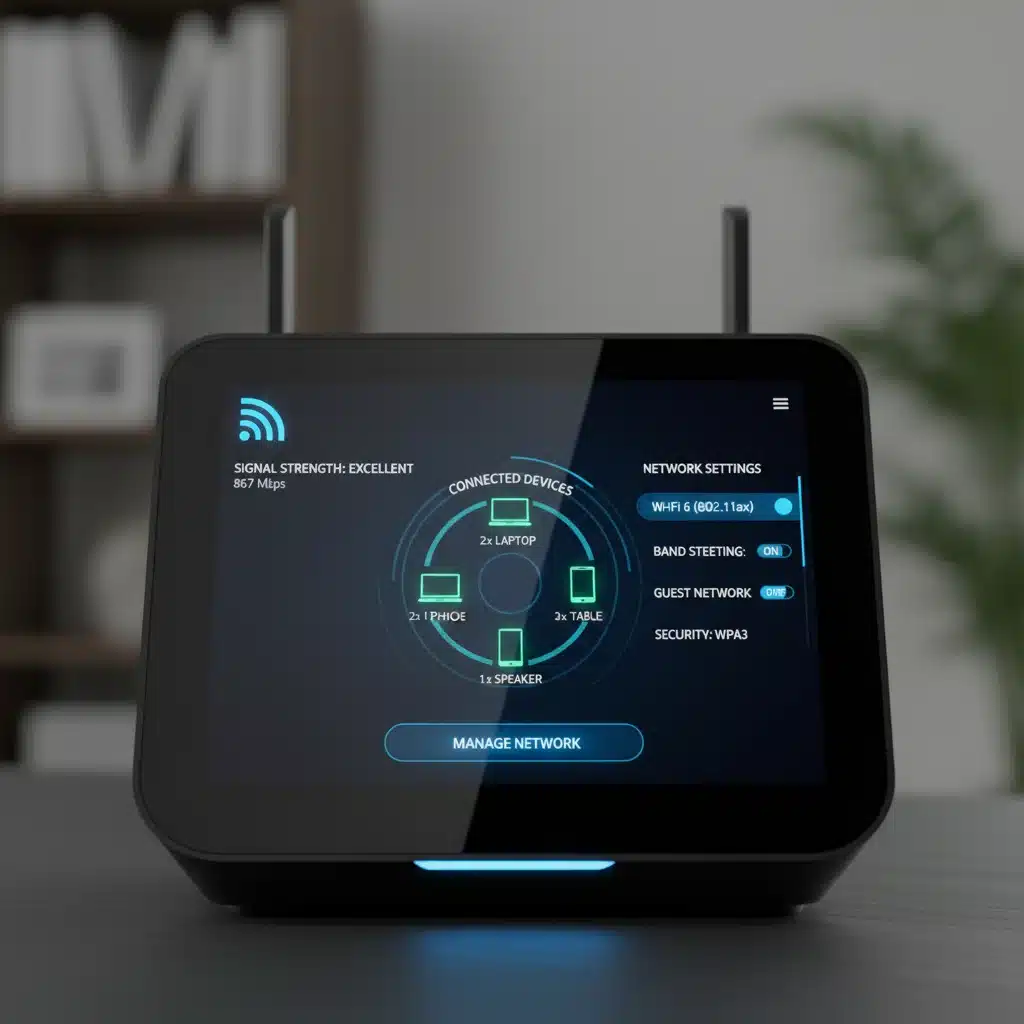
Step 2: Optimize Device Configuration and Network Segmentation
Beyond router settings, how your smart devices themselves are configured and organized on your network plays a significant role in minimizing smart home latency. This step focuses on intelligent device management and network segmentation to prevent congestion and improve responsiveness.
Utilize Both Wi-Fi Bands (2.4 GHz and 5 GHz) Effectively
Modern dual-band routers offer two distinct Wi-Fi frequencies, each with its own characteristics. Leveraging them strategically can significantly reduce network congestion.
- 2.4 GHz Band for Low-Bandwidth Devices: Most smart home devices (smart plugs, light bulbs, door sensors, thermostats) are perfectly fine on the 2.4 GHz band. This band offers better range and penetration through walls, which is often necessary for devices scattered throughout the house. Assign these devices to the 2.4 GHz network.
- 5 GHz Band for High-Bandwidth Devices: Reserve the 5 GHz band for devices that require high speed and low latency, such as 4K streaming devices, gaming consoles, smart TVs, and primary computers. This offloads heavy traffic from the 2.4 GHz band, freeing it up for your smart home devices and reducing overall smart home latency.
- Separate SSIDs: If your router allows, create separate SSIDs (network names) for your 2.4 GHz and 5 GHz networks (e.g., ‘MyHome_2.4GHz’ and ‘MyHome_5GHz’). This gives you explicit control over which devices connect to which band.
Consider a Dedicated IoT Network or VLAN
For advanced users or homes with a large number of smart devices, creating a separate network specifically for IoT (Internet of Things) devices can provide substantial benefits in terms of security and performance.
- Guest Network as IoT Network: Many routers allow you to enable a ‘Guest Network.’ While primarily designed for visitors, it can be repurposed as a segregated IoT network. This isolates your smart devices from your main network, preventing them from consuming bandwidth unnecessarily or posing a security risk to your primary devices.
- VLAN (Virtual Local Area Network): If your router supports VLANs (often found in more advanced or mesh Wi-Fi systems), you can create a truly separate logical network for your smart devices. This offers the best isolation and control. Devices on a VLAN won’t interfere with your main network’s traffic, directly impacting smart home latency on your primary network.
- Benefits: Reduced congestion on your main network, enhanced security (if an IoT device is compromised, it’s isolated), and easier management of smart device traffic.
Regular Device Audits and Updates
Your smart home ecosystem is dynamic. New devices are added, and old ones might become obsolete or problematic. Regular maintenance is key.
- Inventory Your Devices: Keep a list of all your smart devices, noting their connection type (Wi-Fi, Zigbee, Z-Wave) and their assigned network band.
- Remove Unused Devices: If you have old smart plugs or sensors that are no longer in use, disconnect them from your network. Even idle devices can sometimes consume network resources.
- Firmware Updates for Smart Devices: Just like your router, smart devices receive firmware updates. These updates often include performance improvements, bug fixes, and security patches that can directly impact their responsiveness and reduce smart home latency. Check the respective app for each device or the manufacturer’s website for update instructions.
- Reboot Devices: Occasionally, simply rebooting a problematic smart device or your entire smart home hub can resolve temporary glitches and improve responsiveness.
Leverage Local Control Where Possible
Many smart devices rely on cloud services, meaning commands travel from your phone to the cloud, then back to your home network and to the device. This round trip introduces significant latency. Devices that support local control execute commands entirely within your home network, drastically reducing delays.
- Check for Local Control Options: When purchasing new devices, look for those that advertise local control capabilities (e.g., HomeKit-enabled devices, some Zigbee/Z-Wave hubs, or devices controllable via Home Assistant or Hubitat).
- Smart Home Hubs: A dedicated smart home hub (like SmartThings, Hubitat, Homey) often allows for local processing of automations and commands for connected Zigbee, Z-Wave, or even some Wi-Fi devices, bypassing the cloud and reducing smart home latency.
Step 3: Upgrade Key Network Components and Expand Coverage
Sometimes, software configurations and device management can only go so far. To achieve an even greater reduction in smart home latency, especially in larger homes or those with many devices, upgrading your hardware and expanding network coverage becomes essential.
Upgrade to a Modern Router (Wi-Fi 6 or 6E)
Your router is the central nervous system of your smart home. An outdated router can be a major bottleneck, regardless of your internet speed.
- Wi-Fi 6 (802.11ax): This standard is specifically designed to handle multiple devices more efficiently than previous generations. It introduces technologies like OFDMA (Orthogonal Frequency-Division Multiple Access) and MU-MIMO (Multi-User, Multiple-Input, Multiple-Output), which allow the router to communicate with many devices simultaneously rather than sequentially. This significantly reduces congestion and smart home latency, especially in device-dense environments.
- Wi-Fi 6E: Taking it a step further, Wi-Fi 6E introduces the 6 GHz band. This band is less congested than 2.4 GHz and 5 GHz, offering even higher speeds and lower latency for compatible devices. While most smart home devices don’t yet support 6 GHz, having a 6E router future-proofs your network and frees up the 2.4 GHz and 5 GHz bands for your existing smart devices.
- Benefits: Improved capacity, better efficiency, reduced interference, and ultimately, lower latency for all connected devices.
Implement a Mesh Wi-Fi System for Seamless Coverage
Traditional routers struggle to provide consistent coverage in larger or multi-story homes, leading to dead zones and high latency in certain areas. Mesh Wi-Fi systems solve this problem.
- How Mesh Works: A mesh system consists of a main router and several satellite nodes placed strategically around your home. These nodes communicate with each other to create a single, unified Wi-Fi network. Your devices automatically connect to the node with the strongest signal, ensuring consistent performance.
- Eliminate Dead Zones: By extending strong Wi-Fi coverage to every corner of your home, mesh systems ensure that all your smart devices, regardless of their location, receive a robust signal. This directly translates to lower latency and more reliable operation.
- Dedicated Backhaul: Many mesh systems offer a dedicated wireless backhaul (a separate Wi-Fi band or even an Ethernet connection between nodes) to carry traffic between the nodes, preventing this communication from congesting your main Wi-Fi bands. This further reduces smart home latency.
- Scalability: You can easily add more nodes to a mesh system if you expand your smart home or move to a larger residence.
Consider Wired Connections for Static Hubs and High-Bandwidth Devices
While most smart home devices are wireless, any device that can be wired should be. Ethernet connections offer the lowest possible latency and the highest reliability.
- Smart Home Hubs: If your smart home hub (e.g., Philips Hue Bridge, SmartThings Hub, Home Assistant server) has an Ethernet port, connect it directly to your router or a network switch. This ensures its communication with your other smart devices (via Zigbee/Z-Wave) and the internet is as fast and stable as possible.
- High-Bandwidth Devices: Devices like smart TVs, gaming consoles, desktop computers, and network-attached storage (NAS) should ideally be connected via Ethernet. This frees up valuable Wi-Fi bandwidth for your truly wireless smart devices, reducing congestion and improving overall smart home latency.
- Powerline Adapters: If running Ethernet cables isn’t feasible, powerline adapters can be a viable alternative. These devices use your home’s electrical wiring to extend network connectivity, offering a more stable connection than Wi-Fi in some scenarios.

Measuring Your Smart Home Latency and Monitoring Progress
Implementing these steps is only half the battle; the other half is verifying their effectiveness. To truly reduce smart home latency by 25% or more, you need to measure your current latency and monitor improvements.
How to Measure Latency
- Ping Tests: The simplest way to measure latency to a specific device on your network or to the internet is using a ‘ping’ test.
- To an internal device: If you know the IP address of a smart device (e.g., your smart hub), you can ping it from a computer on the same network. Open Command Prompt (Windows) or Terminal (macOS/Linux) and type
ping [device IP address]. Look at the ‘time=’ value, which represents the latency in milliseconds (ms). - To the internet: Ping a reliable, well-known server, like Google’s DNS (
ping 8.8.8.8). This measures your internet latency, which affects cloud-dependent smart devices. - Network Monitoring Tools: More advanced users can utilize network monitoring software (e.g., Wireshark, OpenSpeedTest, or built-in router tools) to get a more comprehensive view of network traffic and latency for various devices.
- Smart Home App Responsiveness: While not a precise measurement, subjectively assess the responsiveness of your smart devices after making changes. Do lights turn on faster? Do voice commands execute more quickly?
Establishing a Baseline and Tracking Improvements
Before you begin making changes, perform these latency tests to establish a baseline. Record the average latency for key devices or internet pings. After implementing each step (or a set of changes), re-run the tests and compare the results. This allows you to quantify the reduction in smart home latency and identify which changes had the most significant impact.
Continuous Monitoring and Adjustment
Your smart home network is not static. New devices are added, neighbors change their Wi-Fi settings, and environmental factors can shift. Periodically re-evaluate your network performance and make adjustments as needed. This iterative process ensures your smart home remains optimally responsive.
The Future of Low-Latency Smart Homes
As technology advances, so too will the solutions for reducing smart home latency. Emerging standards and protocols are constantly being developed to make our connected homes even more responsive.
- Thread and Matter: These new connectivity standards are designed to improve interoperability and reduce latency for smart home devices. Thread is a low-power mesh networking protocol, while Matter aims to unify how smart devices communicate, making setup easier and responses faster by often favoring local control. Devices supporting these standards will inherently offer lower latency.
- Edge Computing: Moving more data processing and decision-making closer to the devices themselves (at the ‘edge’ of the network) rather than relying heavily on cloud servers can drastically cut down on latency. This is already happening with some smart home hubs and AI-powered devices.
- Advanced Wi-Fi Technologies: Beyond Wi-Fi 6E, future Wi-Fi standards will continue to push the boundaries of speed, capacity, and efficiency, further minimizing latency even in highly dense networks.
By staying informed about these advancements and proactively implementing the strategies outlined in this guide, you can ensure your smart home remains at the cutting edge of responsiveness and convenience.
Conclusion: A Responsive Smart Home is Within Reach
Reducing smart home latency by 25% or more is not an insurmountable challenge. By systematically addressing your Wi-Fi configuration, optimizing device management, and strategically upgrading your network hardware, you can transform a sluggish smart home into a truly responsive and enjoyable living environment. Each of the three steps outlined – optimizing your Wi-Fi network configuration, optimizing device configuration and network segmentation, and upgrading key network components – contributes significantly to this goal.
Remember that a smart home is an evolving ecosystem. Regular monitoring, proactive maintenance, and a willingness to adapt to new technologies will ensure that your devices always respond instantly to your commands, making your smart home experience as seamless and magical as it was meant to be. Embrace these practical solutions, and unlock the full potential of your connected living space.